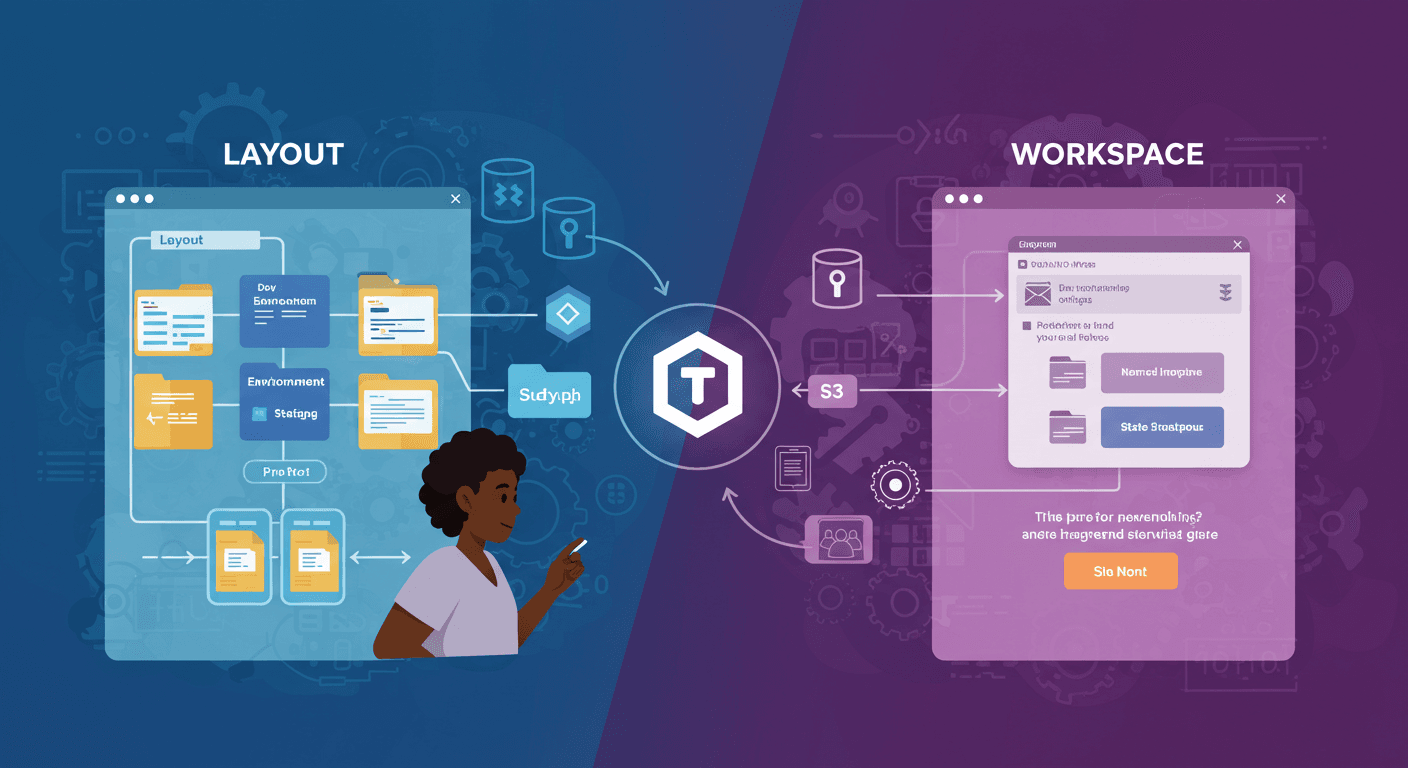
State Isolation: Layout vs Workspace
Terraform State Isolation and Locking: A Practical Guide
Introduction
Managing infrastructure as code (IaC) with Terraform requires careful handling of state files, especially in team environments. State isolation and locking are critical to prevent conflicts and ensure smooth collaboration. In this blog, we'll explore:
State File Isolation (Workspaces & File Layouts)
Remote State Storage (S3 Backend)
State Locking (DynamoDB)
1. State File Isolation
State isolation ensures that changes in one environment (e.g., dev) don’t accidentally affect another (e.g., prod).
Option 1: Isolation via Workspaces
Terraform workspaces allow multiple state files within the same configuration.
Commands:
# Create workspaces for dev, staging, prod
terraform workspace new dev
terraform workspace new staging
terraform workspace new prod

# Switch between workspaces
terraform workspace select dev
Pros: Quick setup, no code duplication.
Cons: Shared modules may lead to accidental cross-environment changes.
Option 2: Isolation via File Layouts
A more explicit approach is using separate directories per environment.
Directory Structure:
terraform/
├── dev/
│   ├── main.tf
│   └── backend.tf
├── staging/
│   ├── main.tf
│   └── backend.tf
└── prod/
    ├── main.tf
    └── backend.tf
Pros: Complete isolation, fewer risks of overlap.
Cons: More files to maintain.

2. Remote State Storage (S3 Backend)
Storing state remotely in Amazon S3 ensures:
Team accessibility
Versioning & Encryption
State locking
Create an S3 Bucket & DynamoDB Table
aws s3api create-bucket \
    --bucket simi-ops-terraform-state \
    --region us-west-2 --create-bucket-configuration \
    LocationConstraint=us-west-2

aws dynamodb create-table \
    --table-name simi-ops-terraform-locks \
    --attribute-definitions AttributeName=LockID,AttributeType=S \
    --key-schema AttributeName=LockID,KeyType=HASH \
    --provisioned-throughput ReadCapacityUnits=5,WriteCapacityUnits=5 \
    --region us-west-2

Configure Terraform Backend
terraform {
  backend "s3" {
    bucket  = "simi-ops-terraform-state"
    key     = "web-server/terraform.tfstate"
    region  = "us-west-2"
    dynamodb_table = "simi-ops-terraform-locks"
    encrypt = true
  }
}
3. State Locking with DynamoDB
Prevents concurrent state modifications by locking the state file during operations.
How It Works:
User A runs
terraform apply→ DynamoDB creates a lock entry.User B tries to modify infrastructure → Terraform checks the lock and blocks changes until User A finishes.
Once User A completes, the lock is released.

Testing State Locking
User 1: Runs
terraform apply→ acquires lock.User 2: Attempts
terraform apply→ gets an error:Error: Error acquiring the state lock Lock Info: ID: <lock-id> | Status: Locked
Prevents corruption from overlapping changes.

Conclusion
By implementing:
Workspaces / File Layouts → Isolate environments.
S3 Backend → Securely store state.
DynamoDB Locking → Prevent conflicts.